







Website · Installation · Configuration


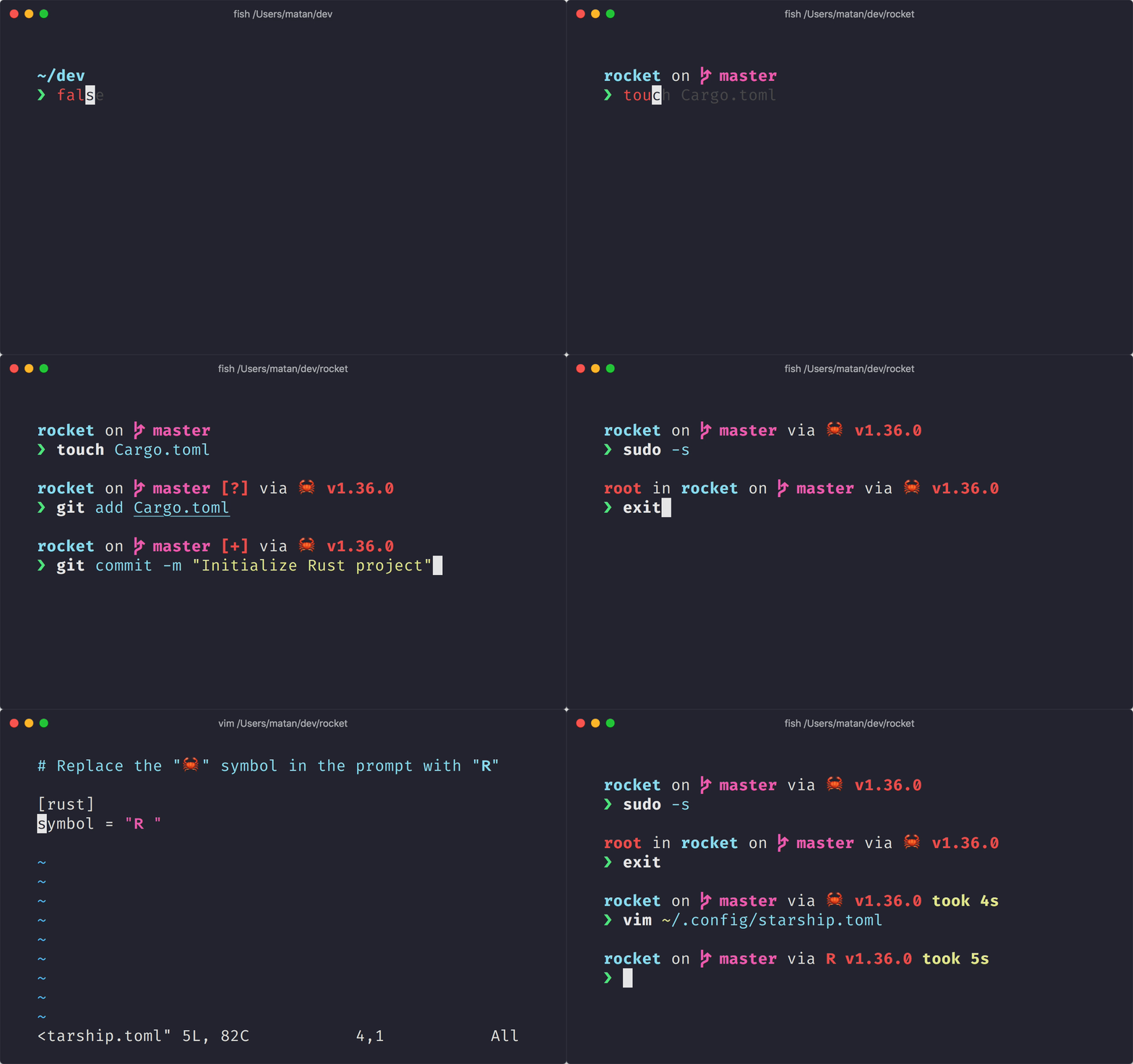
The minimal, blazing-fast, and infinitely customizable prompt for any shell!
- Fast: it's fast – really really fast! 🚀
- Customizable: configure every aspect of your prompt.
- Universal: works on any shell, on any operating system.
- Intelligent: shows relevant information at a glance.
- Feature rich: support for all your favorite tools.
- Easy: quick to install – start using it in minutes.
🚀 Installation
Prerequisites
- A Nerd Font installed and enabled in your terminal (for example, try the FiraCode Nerd Font).
Step 1. Install Starship
Select your operating system from the list below to view installation instructions:
Android
Install Starship using any of the following package managers:
| Repository | Instructions |
|---|---|
| Termux | pkg install starship |
BSD
Install Starship using any of the following package managers:
| Distribution | Repository | Instructions |
|---|---|---|
| Any | crates.io | cargo install starship --locked |
| FreeBSD | FreshPorts | pkg install starship |
| NetBSD | pkgsrc | pkgin install starship |
Linux
Install the latest version for your system:
curl -sS https://starship.rs/install.sh | shAlternatively, install Starship using any of the following package managers:
| Distribution | Repository | Instructions |
|---|---|---|
| Any | crates.io | cargo install starship --locked |
| Any | conda-forge | conda install -c conda-forge starship |
| Any | Linuxbrew | brew install starship |
| Alpine Linux 3.13+ | Alpine Linux Packages | apk add starship |
| Arch Linux | Arch Linux Extra | pacman -S starship |
| CentOS 7+ | Copr | dnf copr enable atim/starship dnf install starship |
| Debian 13+ | Debian Main | apt install starship |
| Fedora 40+ | Copr | dnf copr enable atim/starship dnf install starship |
| Gentoo | Gentoo Packages | emerge app-shells/starship |
| Manjaro | pacman -S starship | |
| NixOS | nixpkgs | nix-env -iA nixpkgs.starship |
| openSUSE | OSS | zypper in starship |
| Ubuntu 25.04+ | Ubuntu Universe | apt install starship |
| Void Linux | Void Linux Packages | xbps-install -S starship |
macOS
Install the latest version for your system:
curl -sS https://starship.rs/install.sh | shAlternatively, install Starship using any of the following package managers:
| Repository | Instructions |
|---|---|
| crates.io | cargo install starship --locked |
| conda-forge | conda install -c conda-forge starship |
| Homebrew | brew install starship |
| MacPorts | port install starship |
Windows
Install the latest version for your system with the MSI-installers from the releases section.
Install Starship using any of the following package managers:
| Repository | Instructions |
|---|---|
| crates.io | cargo install starship --locked |
| Chocolatey | choco install starship |
| conda-forge | conda install -c conda-forge starship |
| Scoop | scoop install starship |
| winget | winget install --id Starship.Starship |
Step 2. Set up your shell to use Starship
Configure your shell to initialize starship. Select yours from the list below:
Bash
Add the following to the end of ~/.bashrc:
eval "$(starship init bash)"Cmd
You need to use Clink (v1.2.30+) with Cmd. Create a file at this path %LocalAppData%\clink\starship.lua with the following contents:
load(io.popen('starship init cmd'):read("*a"))()Elvish
Add the following to the end of ~/.config/elvish/rc.elv (%AppData%\elvish\rc.elv on Windows):
eval (starship init elvish)Note: Only Elvish v0.18+ is supported. For elvish versions prior to v0.21.0 the config file might instead be ~/.elvish/rc.elv
Fish
Add the following to the end of ~/.config/fish/config.fish:
starship init fish | sourceIon
Add the following to the end of ~/.config/ion/initrc:
eval $(starship init ion)Nushell
Add the following to the end of your Nushell configuration (find it by running $nu.config-path in Nushell):
mkdir ($nu.data-dir | path join "vendor/autoload")
starship init nu | save -f ($nu.data-dir | path join "vendor/autoload/starship.nu")
Note: Only Nushell v0.96+ is supported
PowerShell
Add the following to the end of your PowerShell configuration (find it by running $PROFILE):
Invoke-Expression (&starship init powershell)Tcsh
Add the following to the end of ~/.tcshrc:
eval `starship init tcsh`Xonsh
Add the following to the end of ~/.xonshrc:
execx($(starship init xonsh))Zsh
Add the following to the end of ~/.zshrc:
eval "$(starship init zsh)"Step 3. Configure Starship
Start a new shell instance, and you should see your beautiful new shell prompt. If you're happy with the defaults, enjoy!
If you're looking to further customize Starship:
Configuration – learn how to configure Starship to tweak your prompt to your liking
Presets – get inspired by the pre-built configuration of others
🤝 Contributing
We are always looking for contributors of all skill levels! If you're looking to ease your way into the project, try out a good first issue.
If you are fluent in a non-English language, we greatly appreciate any help keeping our docs translated and up-to-date in other languages. If you would like to help, translations can be contributed on the Starship Crowdin.
If you are interested in helping contribute to starship, please take a look at our Contributing Guide. Also, feel free to drop into our Discord server and say hi. 👋
💭 Inspired By
Please check out these previous works that helped inspire the creation of starship. 🙏
denysdovhan/spaceship-prompt – A ZSH prompt for astronauts.
denysdovhan/robbyrussell-node – Cross-shell robbyrussell theme written in JavaScript.
reujab/silver – A cross-shell customizable powerline-like prompt with icons.
❤️ Sponsors
Support this project by becoming a sponsor. Your name or logo will show up here with a link to your website.
🔒 Code Signing Policy
Free code signing provided by SignPath.io, certificate by SignPath Foundation.
Code Signing Roles:
- Reviewers: Astronauts
- Approvers and Authors: Mission Control
This program will not transfer any information to other networked systems unless specifically requested by the user or the person installing or operating it.

📝 License
Copyright © 2019-present, Starship Contributors.
This project is ISC licensed.